Account registered
You can log in to the web app with your registered email.
Önce hesabınızın doğrulandığını, bakiyenizin yeterli olduğunu ve teslimat adresinizin hazır olduğunu kontrol edin. Ardından fiziksel kart için başvurun, ücreti onaylayın, teslimatı bekleyin ve kart geldikten sonra etkinleştirin.
If any item is missing, your physical card application will likely get stuck. Check them one by one first.
You can log in to the web app with your registered email.
You have submitted identity information and the review has passed.
Your account has enough balance to pay the physical card fee.
Prepare a deliverable name, phone number, region, and full address.
The steps below follow the real operating order, with what to do, what completion looks like, and beginner notes.
A physical card must be delivered, so add your shipping address before starting the application.
Note: Unlike a virtual card, a physical card must be shipped. A missing address will block the application.
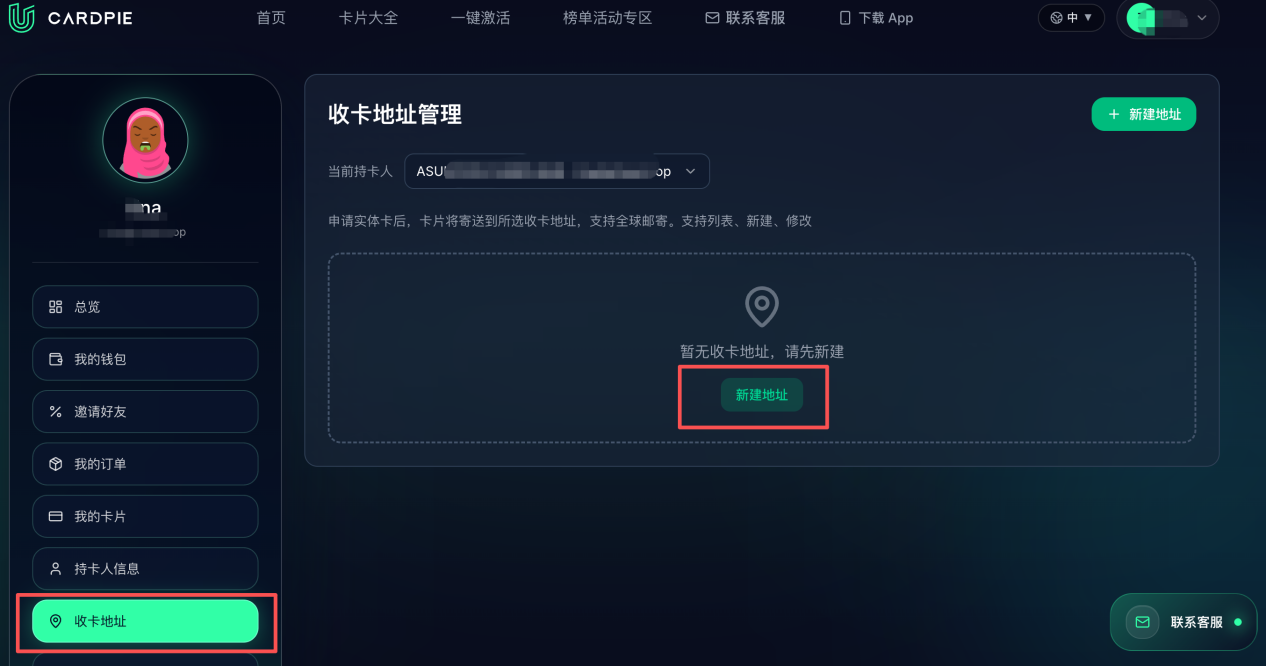
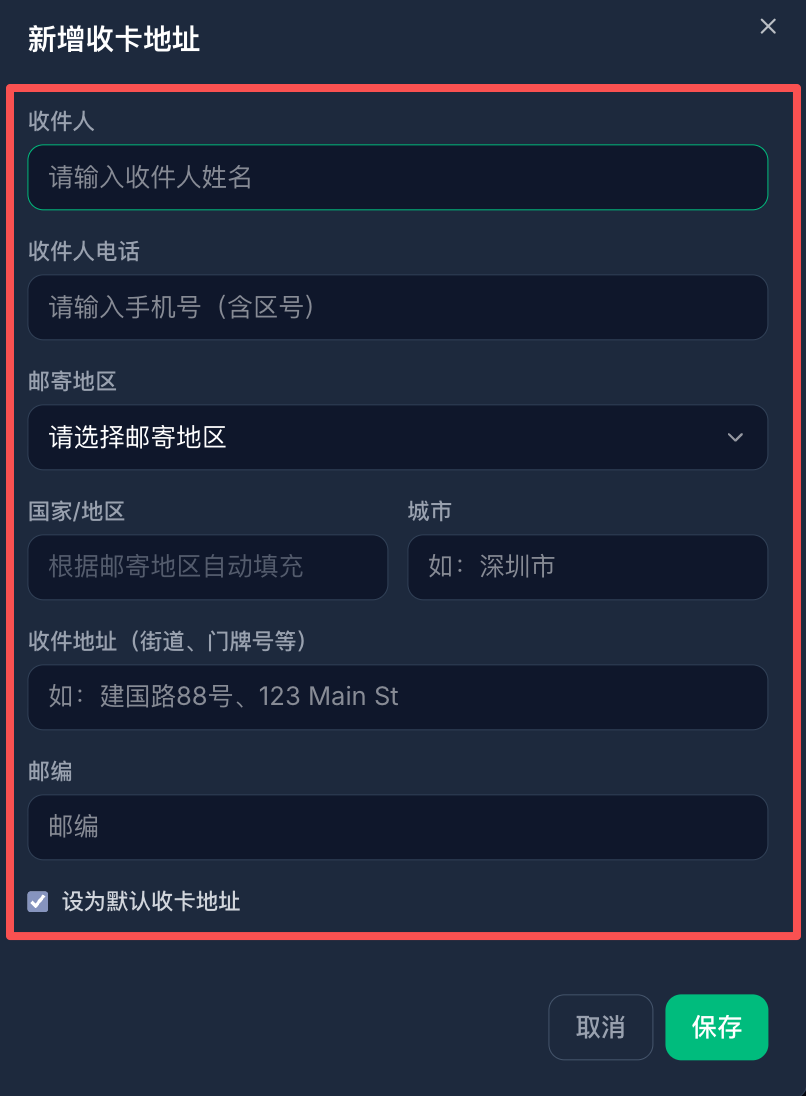
Enter the recipient, phone number, region, and detailed address. Review everything before saving.
Note: An incorrect phone number or address can affect card delivery.
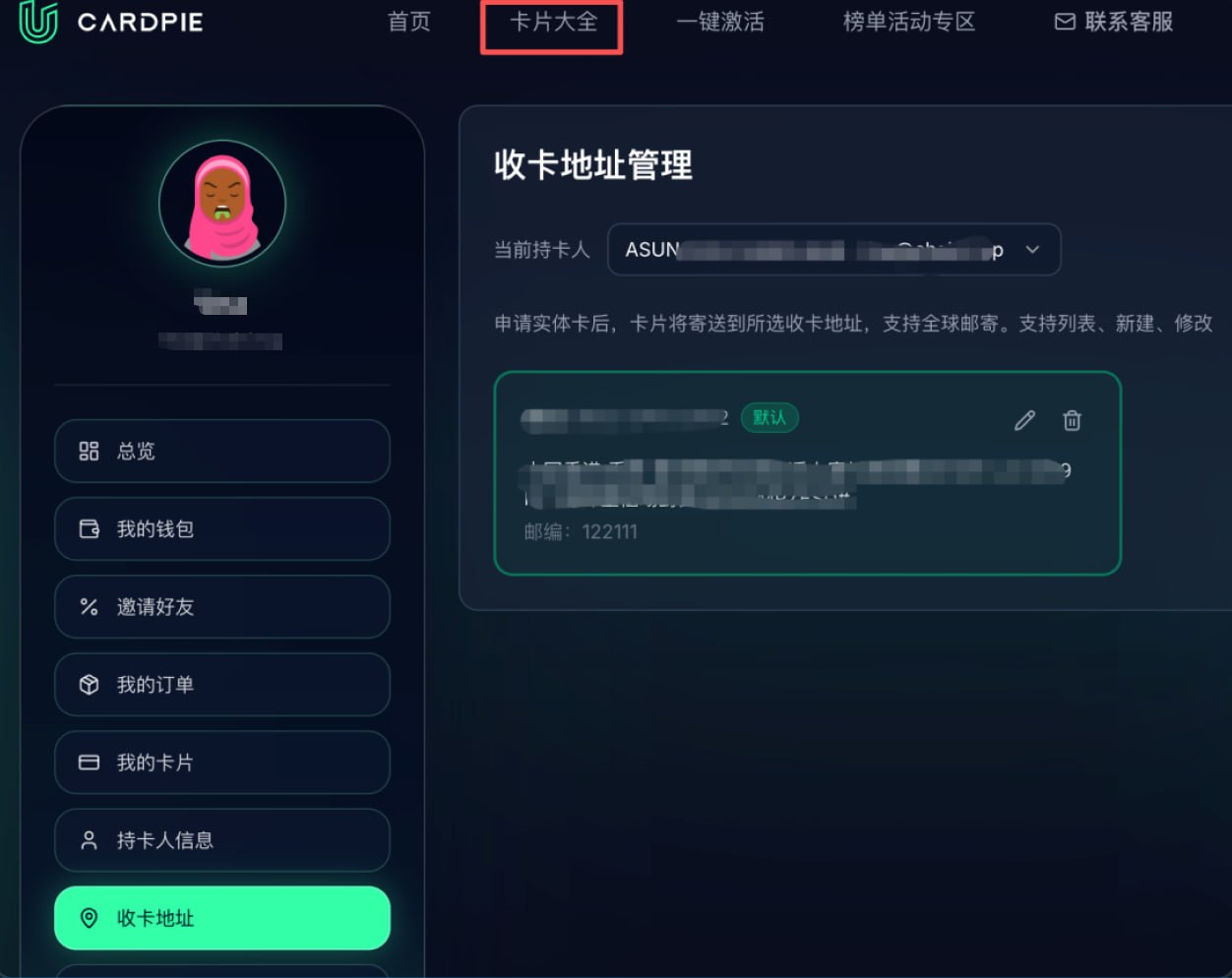
After saving the address, go back to the card area and open All Cards or Apply for a new card.
Note: If no card is available, check whether identity verification has passed.
Choose the physical card product and make sure it is not a virtual card.
Note: Virtual cards usually do not require delivery. Make sure the card type is correct.
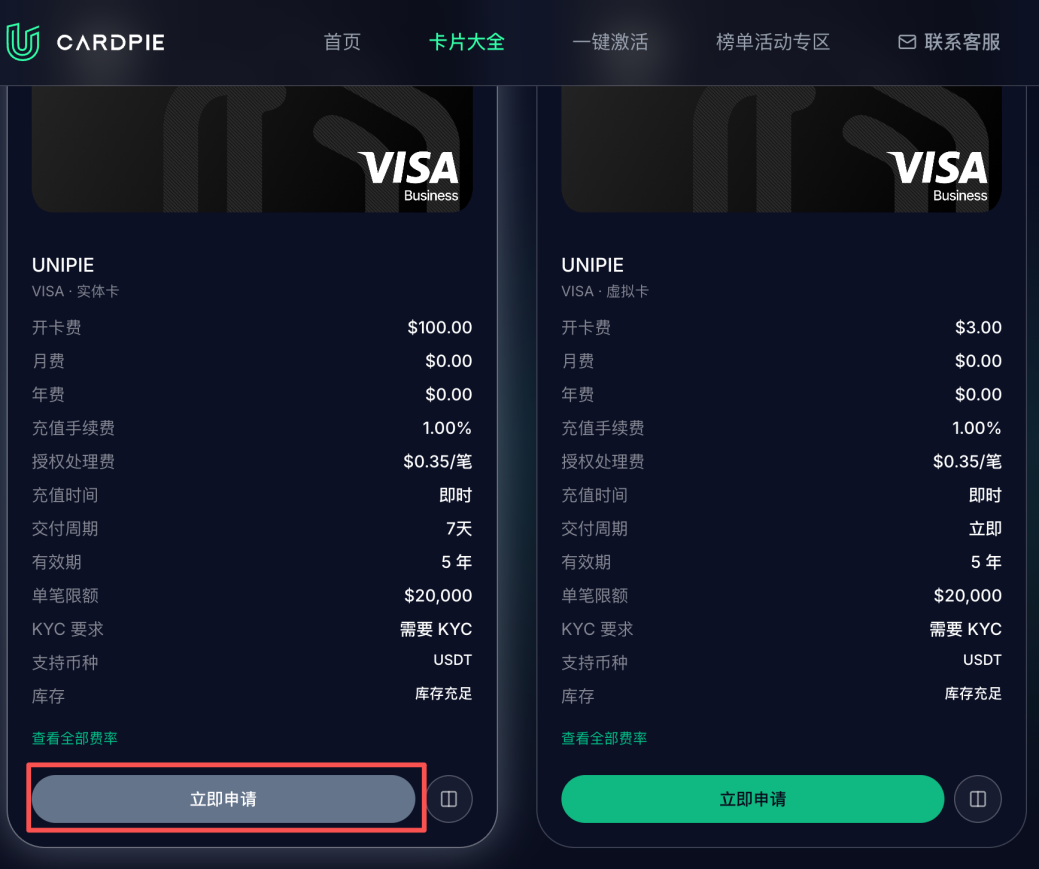
Review the fee, account balance, and shipping address before submitting the application.
Note: If your balance is insufficient, top up USDT first and then continue the application.
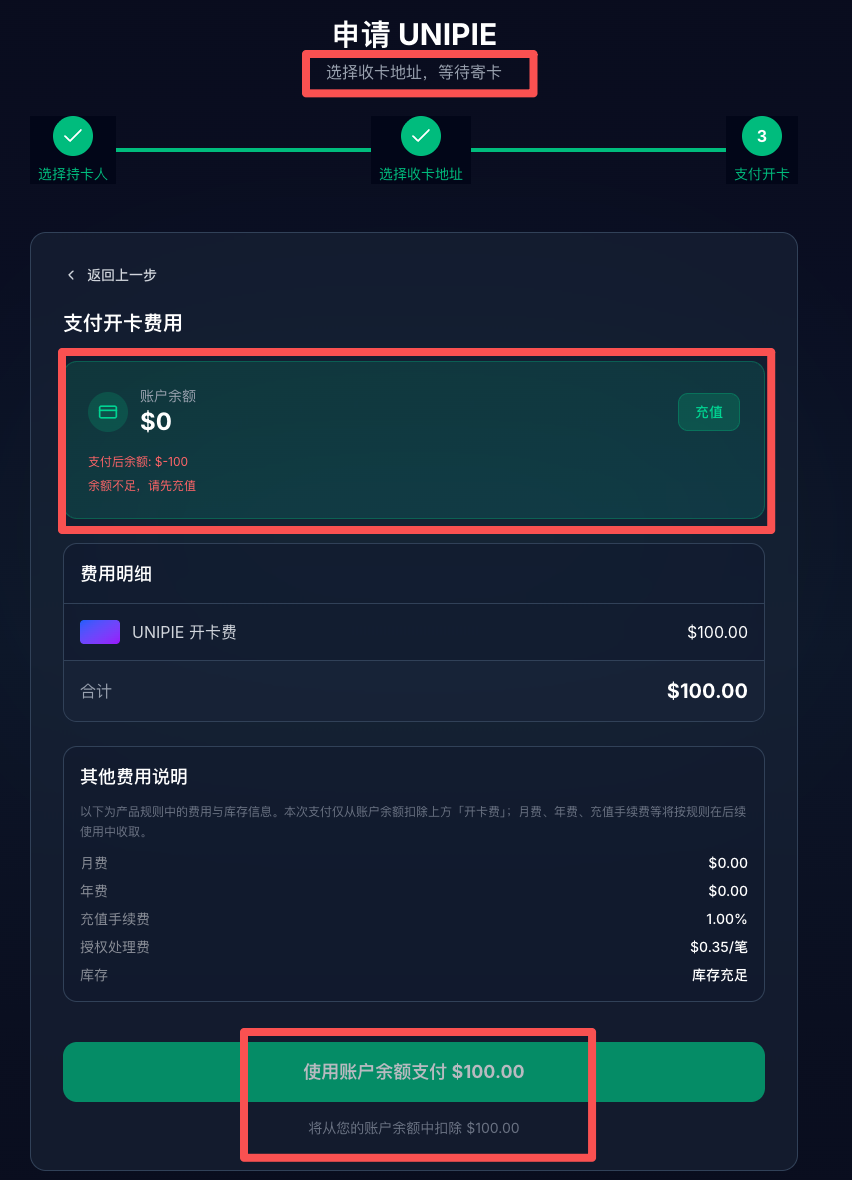
After submission, wait for delivery. Once you receive the card, return to My Cards and activate it.
Note: Application success does not mean the card can be used immediately. It must be received and activated first.
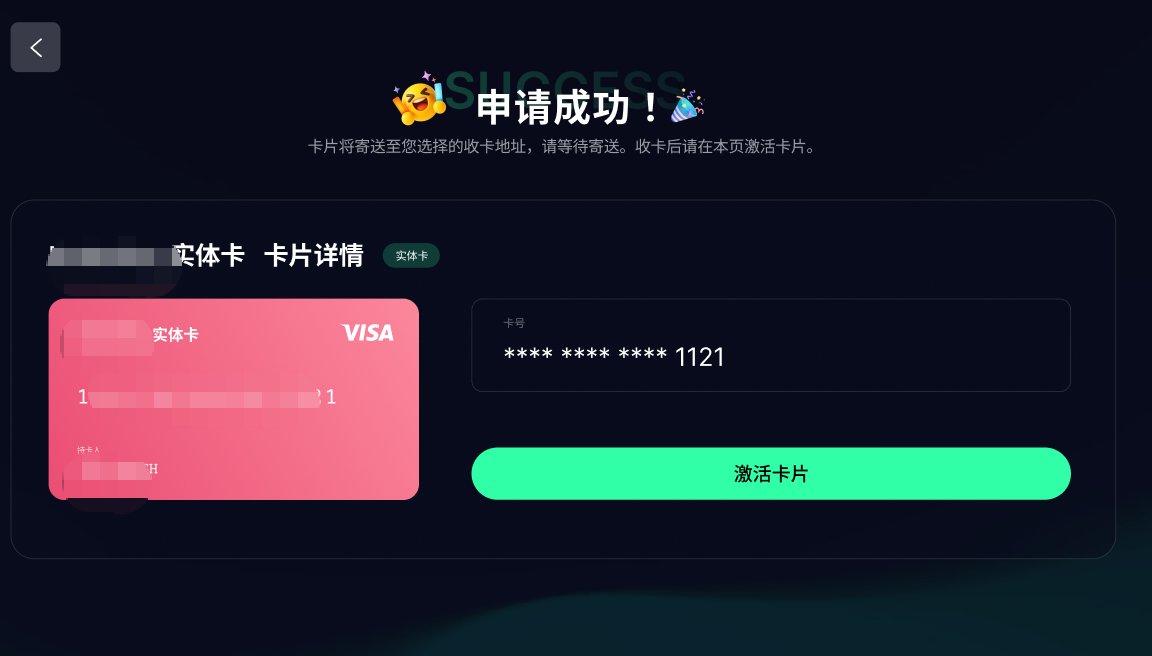
This is the part beginners often miss: after the card arrives, return to the platform to activate it. If you received or bought a card offline, use the offline physical card activation entry.
Use the same account that applied for the physical card.
For platform-shipped cards, activate the matching card in My Cards. For offline cards, use Offline Physical Card Activation.
After activation, the card is added to My Cards or marked as usable.
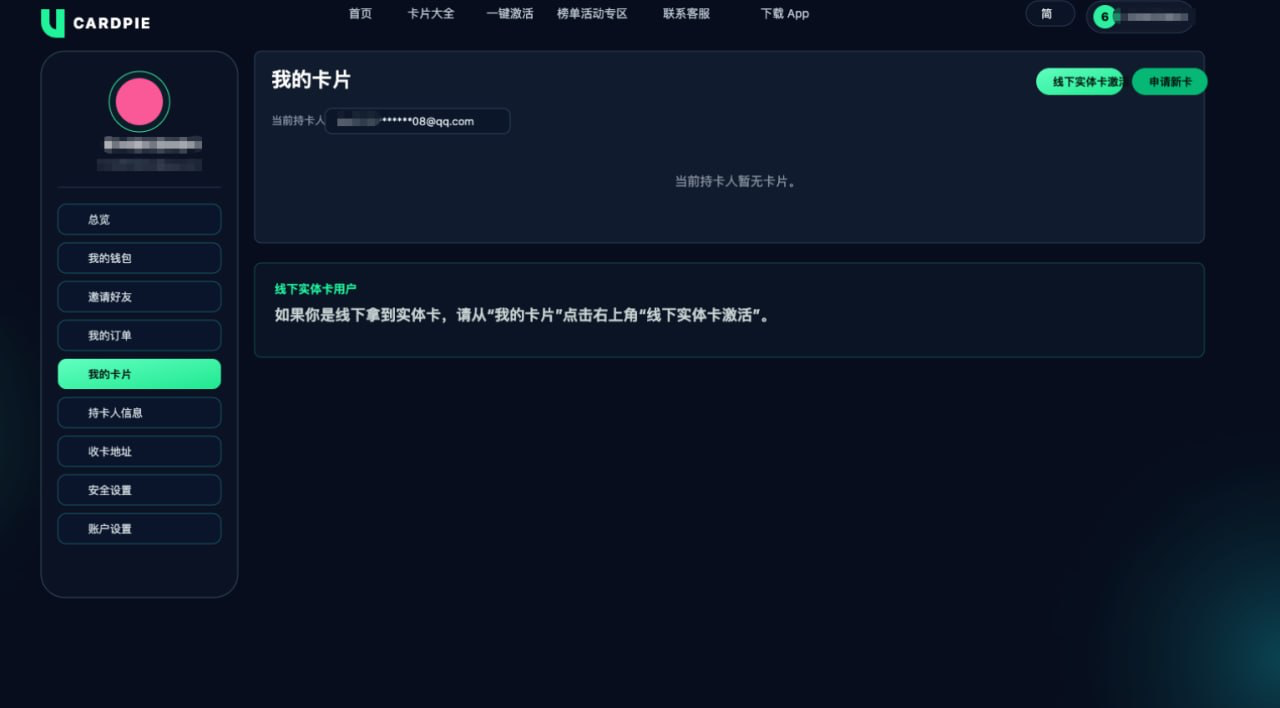
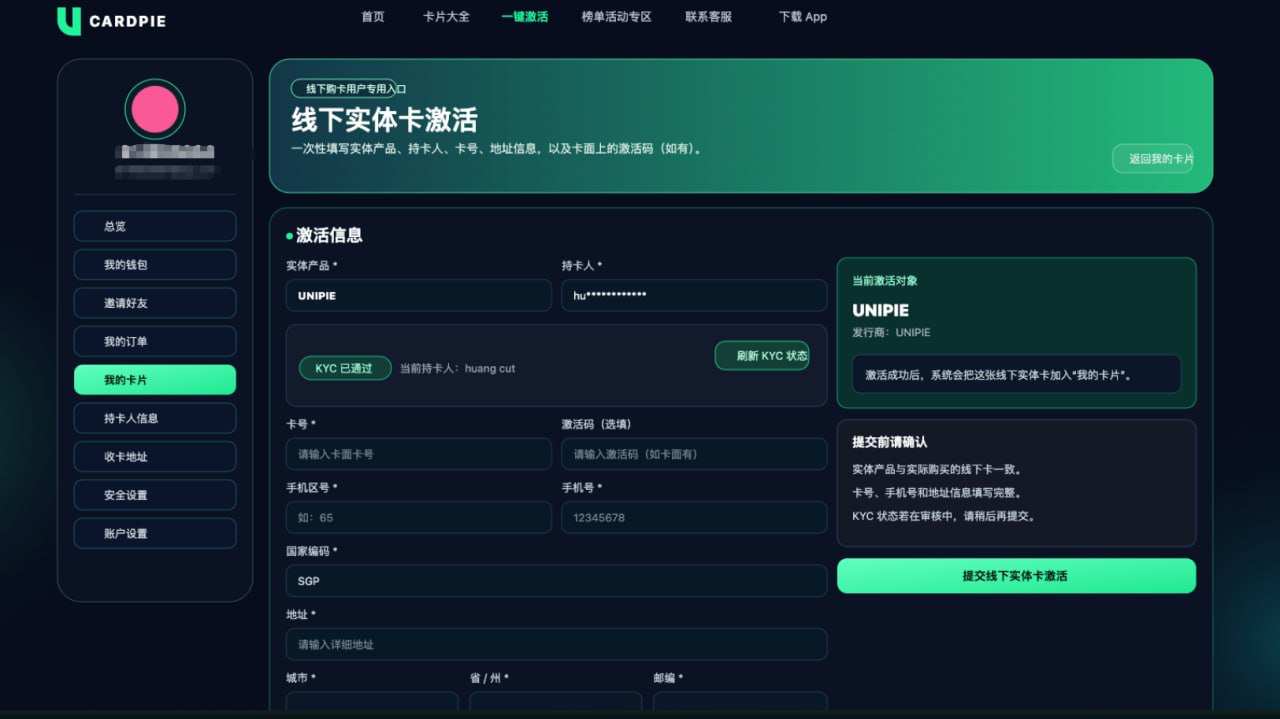
For users who already have a physical card offline. Open My Cards and use the Offline Physical Card Activation button.
Path: User Center -> My Cards -> Offline Physical Card Activation
Done when: the offline activation form opens.
Fill in the product, user profile, card number, phone number, country code, and address. Include an activation code if shown on the card.
Required: product, user profile, card number, phone, country code, address, city, state/province, and postal code.
After submitting successfully, the card will be added to My Cards.
Online application: register -> pass identity verification -> top up USDT -> add shipping address -> apply from All Cards -> confirm fee -> wait for delivery -> activate after receiving.
Offline card: User Center -> My Cards -> Offline Physical Card Activation -> fill in card and address details -> submit activation.
The most common blockers are answered here so users do not need to repeatedly scan the guide.
A physical card must be shipped. Without a shipping address, the platform does not know where to send it.
Top up USDT first. After it arrives, return to continue the card application.
No. Wait for delivery and activate the physical card after receiving it.
Go to User Center -> My Cards, click Offline Physical Card Activation, fill in the card, phone, and address details, then submit.